
Can Teachers See If You Cheat on Google Forms? (Yes — Here's Exactly How)
Can teachers tell if you cheat on Google Forms? Google Forms alone has no built-in cheat detection — but paired with MonitorExam, teachers can monitor tab switches, face presence and suspicious behaviour in real time.
Updated June 2026 · 9 min read · MonitorExam
Quick Answer Google Forms alone cannot detect cheating — it has no built-in proctoring, tab-switch detection, or identity verification. However, teachers using MonitorExam alongside Google Forms can monitor students in real time, track face presence, detect tab switches, and receive instant alerts for suspicious behaviour. Setup takes under 5 minutes and works with any existing Google Forms exam.
Every teacher who has run a Google Forms exam has wondered the same thing. Can students cheat? Can I tell if they do? Here is the honest, complete answer.
If you are a teacher in a hurry and do not want to read the text below you can straightaway create a secure test with your existing link and quickly assign it to your students . It will just take 5 mins
What Does Google Forms Actually Record?
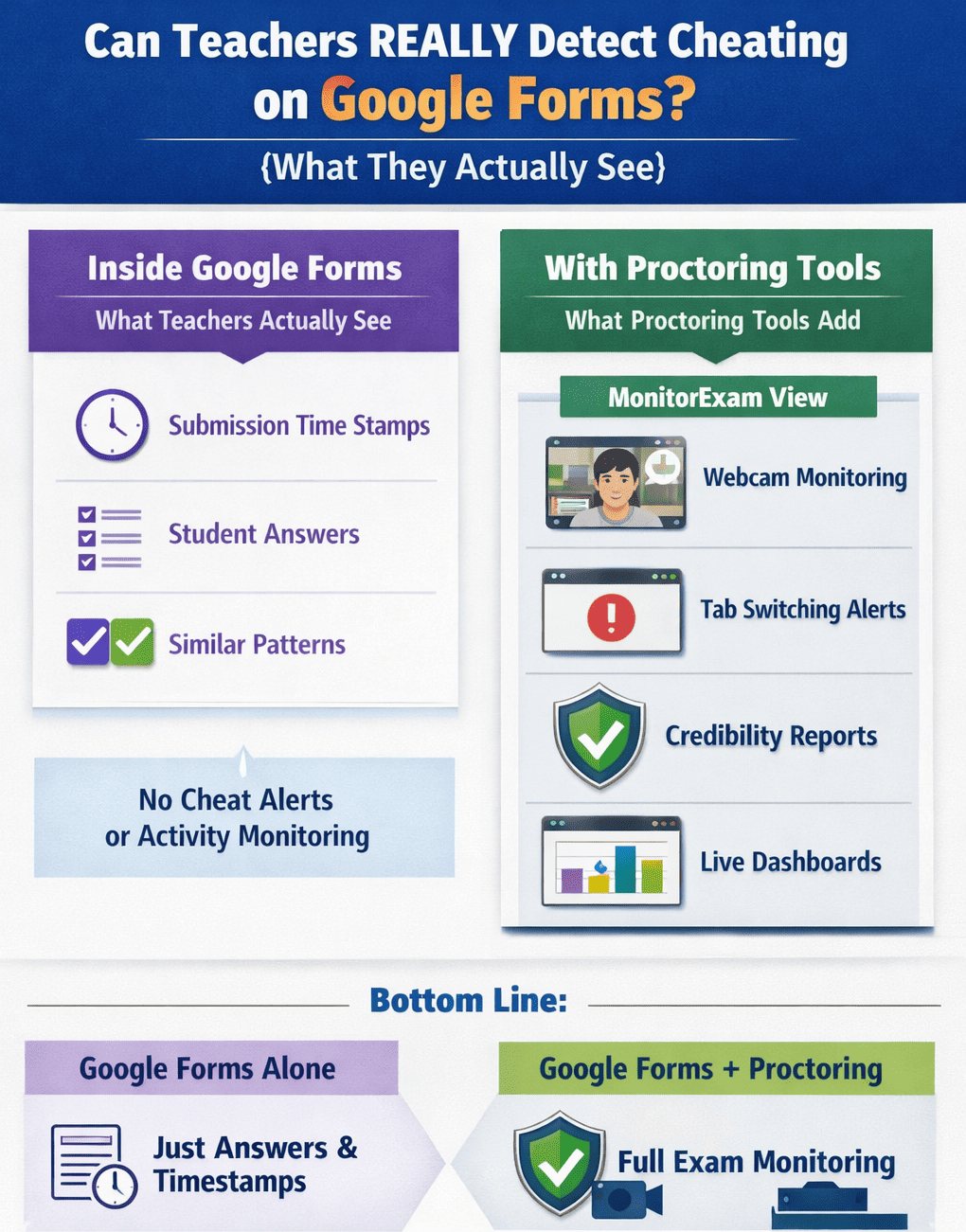
Google Forms records the following for every exam submission:
- Responses — every answer the student submitted
- Timestamp — the exact time the form was submitted
- Email address — if you required sign-in
- Edit history — if the student edited their response after submission (only if you enabled this)
That is it. Google Forms does not record:
- How long a student spent on each question
- Whether the student switched tabs or opened another browser
- Whether the student left the exam window
- Whether the student used another device or had help
- Whether the student looked away from the screen
- Whether someone else was in the room
Can Teachers See If You Switch Tabs on Google Forms?
No — Google Forms cannot detect tab switching.
When a student opens a new tab, minimises the browser, or navigates to another website, Google Forms has no way of knowing. The form stays open and continues waiting for a submission.
The only exception is Locked Mode — available exclusively on managed Chromebooks in Google Workspace for Education. In Locked Mode, students are restricted to a single browser tab and cannot access other applications. However:
- It only works on school-managed Chromebooks — not personal laptops, phones, or tablets
- It requires the school to have Google Workspace for Education
- It still does not provide webcam monitoring or identity verification
For most institutions running Google Forms exams on personal devices, tab switching goes completely undetected.
If you want to actually detect and flag tab switches in real time, the practical solution is to add proctoring to your Google Forms exam — which takes under 5 minutes and requires no installation on the student's device.
If you are a teacher in a hurry and do not want to read the text below you can straightaway create a secure test with your existing link and quickly assign it to your students . It will just take 5 mins
Does Google Forms Notify Teachers of Cheating?
No — Google Forms sends no cheating alerts.
Teachers receive a notification when a student submits the form, but nothing during the exam itself. There are no real-time alerts for:
- Tab switches or browser exits
- Multiple people visible on screen
- Unusual answer timing
- Device changes mid-exam
- Screen sharing or external help
Can Teachers Detect Cheating on Google Forms Without Extra Tools?
There are a few limited built-in options teachers can use to reduce (not eliminate) cheating:
| Method | What It Does | Limitation |
|---|---|---|
| Shuffle questions | Randomises question order per student | Students can still share answers verbally |
| Shuffle answer choices | Randomises MCQ options | Doesn't prevent looking up answers |
| One response per person | Requires Google sign-in | Students can use multiple accounts |
| Locked Mode | Restricts to one tab | Chromebook + Google Workspace only |
| Time limit via deadline | Sets a closing time | No countdown timer visible to students |
| Collect email addresses | Records who submitted | Doesn't verify identity during the exam |
None of these methods detect cheating in real time. They can make cheating harder but cannot flag it as it happens.
If you are a teacher in a hurry and do not want to read the text below you can straightaway create a secure test with your existing link and quickly assign it to your students . It will just take 5 mins
Can Google Forms Detect Tab Switching?
No — Google Forms cannot detect tab switching under any circumstances on personal devices.
When a student opens a new tab to search for answers, use ChatGPT, or check notes, Google Forms has no record of it. The form simply stays open in the background. This is the most common form of cheating on Google Forms — and the one teachers ask about most.
The only partial exception is Locked Mode on managed Chromebooks, which restricts navigation — but does not alert teachers and only works on school-owned devices.
MonitorExam detects every tab switch — logging the timestamp, the duration away, and how many times it happened. This becomes part of the student's CredScore at the end of the exam.
Can Google Forms Detect ChatGPT Use?
No — Google Forms has no AI detection capability.
If a student opens a new tab and types exam questions into ChatGPT, Google Forms will never know. There is no content analysis, no clipboard monitoring, and no tab visibility detection built into Google Forms.
What MonitorExam can detect:
- The tab switch to the ChatGPT tab — logged with timestamp
- Copy-paste activity — blocked and flagged
- Unusual answer timing — if a student answers in seconds after a tab switch, it is flagged as an anomaly
MonitorExam cannot read what was typed into ChatGPT. But the behavioural trail — tab switch, paste, instant submission — is captured and appears in the CredScore report.
If you are a teacher in a hurry and do not want to read the text below you can straightaway create a secure test with your existing link and quickly assign it to your students . It will just take 5 mins
Can Teachers See What You Searched on Google Forms?
No — Google Forms does not track browser activity outside the form itself.
Teachers can only see what was submitted in the form responses. They cannot see browser history, search queries, or any activity that happened outside the Google Forms tab during the exam.
This is why proctoring tools are necessary for any exam where academic integrity matters. MonitorExam monitors the entire session environment — not just what was submitted.
Does Google Forms Record Time Spent on Each Question?
No — Google Forms only records the final submission timestamp.
There is no per-question timing data in Google Forms. Teachers cannot see how long a student spent on question 3 vs question 7, or whether they skipped and came back. The only timestamps available are when the form was opened and when it was submitted.
AssessME, MonitorExam's assessment platform, provides per-question timing data as part of the full performance report.
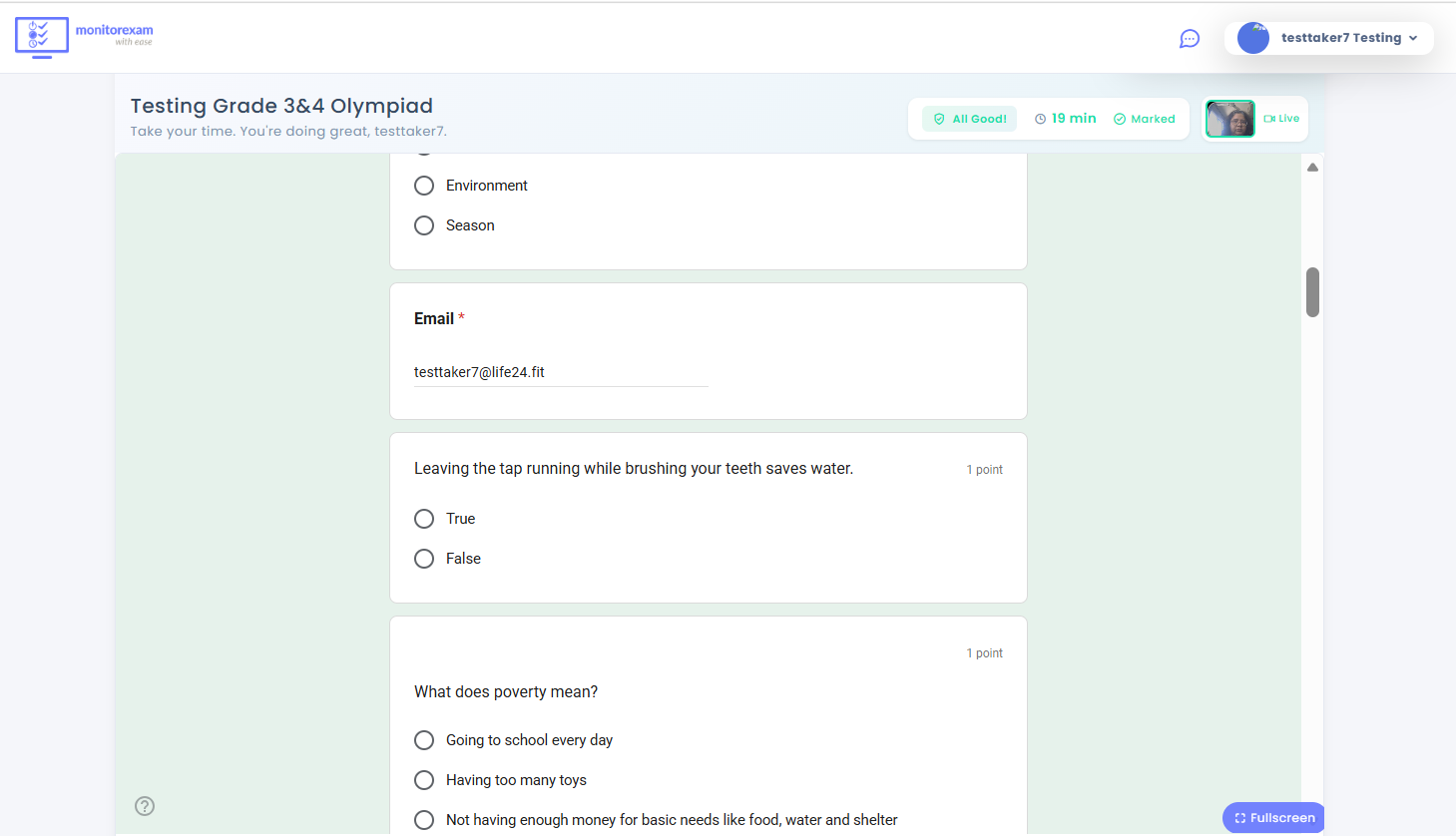
How MonitorExam Detects Cheating on Google Forms
MonitorExam is a web-based proctoring application that works alongside Google Forms. Teachers paste their Google Forms link into MonitorExam — and the platform adds a full proctoring layer on top. No installation required on any device.
Here is exactly what MonitorExam detects:
1. Tab Switch Detection
If a student navigates away from the exam tab — to Google, WhatsApp, ChatGPT, or anywhere else — MonitorExam logs it instantly and alerts the teacher. Every tab switch is recorded with a timestamp.
2. Face Tracking and Presence Detection
MonitorExam's webcam monitoring tracks whether the student is present throughout the exam. If the student looks away, leaves the frame, or a second person appears, the system flags it in real time.
3. Identity Verification
Before the exam begins, students verify their identity via FIDO2 passkey authentication — device-bound biometric verification that cannot be shared or transferred. The right student takes the right exam.
4. AI-Powered Anomaly Detection
MonitorExam's AI analyses behaviour patterns throughout the session — unusual answer timing, rapid completion, erratic mouse movement — and flags anomalies that may indicate external help. For a full breakdown of how AI proctors detect cheating, see our dedicated guide.
5. Environment Monitoring
The system detects unknown objects (phones, notes, second screens) in the student's environment and flags them for teacher review.
6. CredScore Report
At the end of every exam, each student receives a CredScore — a 7-angle integrity rating with a full audit trail of every flagged event during the session. Teachers review this after the exam to make informed decisions about suspicious submissions.
7. Real-Time Teacher Alerts
Even if the teacher is not actively watching the live dashboard, MonitorExam sends instant alerts when cheating is suspected — so no misconduct goes unnoticed.
Now that you understand the steps given above give it a try by clicking the try free button below . The complete setup would take your 5 mins
Does MonitorExam Work Without a Camera?
Yes — and this is one of MonitorExam's most important differentiators.
Online proctoring without a camera is fully supported. MonitorExam's camera-optional mode uses browser lockdown, behavioural analytics, and session logs to proctor the exam without requiring a video feed. This makes it accessible for students in shared spaces, low-bandwidth environments, or institutions with privacy-sensitive policies.
This matters for Google Forms exams specifically — many teachers run quizzes where webcam surveillance feels disproportionate to the stakes. Camera-optional mode gives you integrity assurance without the overhead.
Your next Google Forms exam could be fully proctored.
Students open a link. No installation. No extension.
Face tracking, tab detection, identity verification — live.
CredScore delivered the moment they submit.
Try MonitorExam Free — No Credit Card
Book a 15-minute Demo
How to Set Up Google Forms with MonitorExam (Step by Step)
Setting up a proctored Google Forms exam takes less than 5 minutes:
- Create your exam in Google Forms as usual — add questions, set point values, configure answer options
- Copy the Google Forms link
- Register at monitorexam.com — free to try, no credit card required
- Create a new exam in MonitorExam and paste your Google Forms link
- Configure proctoring settings — choose which monitoring features to enable: webcam, tab detection, identity verification, camera-optional mode
- Add student via CSV or you can add individual student
- Student can login using credentials shared to them via email
- Students verify identity and begin the proctored session
- Monitor live from your teacher dashboard or review CredScore reports after the exam
For a complete walkthrough of all five methods available for proctoring Google Forms, including free options, see the full Google Forms proctoring guide.
If you are a teacher in a hurry and do not want to read the text below you can straightaway create a secure test with your existing link and quickly assign it to your students . It will just take 5 mins
Email us the test link care@monitorexam.com . We will setup a test link for you.
Can MonitorExam Do Auto-Grading?
Yes — through AssessME, MonitorExam's built-in assessment platform.
AssessME adds the following on top of Google Forms and MonitorExam:
- Auto-submission — exam submits automatically when time is up
- Auto-save — answers are saved continuously so no work is lost
- Auto-grading — instant scoring for all question types
- Individual and group reports — detailed performance breakdown per student and per cohort
The complete workflow: Google Forms (questions) → MonitorExam (proctoring) → AssessME (grading + reports). One seamless exam pipeline.
How Ivy League Universities Handle This Problem
If you are wondering how top institutions approach online exam integrity, the answer has moved significantly beyond Google Forms alone.
How Ivy League schools conduct online exams in 2026 shows that Harvard, Yale, MIT, and Cornell have each adopted different approaches — some using dedicated proctoring infrastructure, others using honour codes supplemented by AI detection. What none of them rely on is Google Forms without a proctoring layer for any high-stakes assessment.
What Makes MonitorExam Different From Other Proctoring Tools
Most proctoring tools require a browser extension download, admin device configuration, or a Chrome-only setup. MonitorExam requires none of these. What makes MonitorExam different comes down to seven specific things — including camera-optional mode, FIDO2 passkey authentication, and Google Forms native integration that no other proctoring tool offers.
Why Use MonitorExam?
| Feature | What It Does |
|---|---|
| AI Proctoring | Monitors students in real time and flags suspicious activity |
| Face Tracking | Detects if students look away or leave the frame |
| Tab Switch Detection | Alerts teachers if students navigate away from the exam |
| AI Anomaly Detection | Identifies unusual behaviour patterns automatically |
| Instant Alerts | Real-time notifications even when teacher is offline |
| CredScore Reports | 7-angle integrity report for every student at submission |
| Camera-Optional Mode | Credible proctoring without a webcam |
| Google Forms Integration | Paste any Google Forms link — proctoring applies automatically |
| 5-Minute Setup | No installation. No extension. Any device, any browser |
A Note to Students
Even if your teacher is using Google Forms without a proctoring tool, we encourage you to follow the honour code and not cheat.
Academic integrity matters — not just for the institution, but for you. The skills and knowledge you build honestly are the ones that will serve your career. And if your institution is using MonitorExam — the system is designed to be fair, private, and non-intrusive. It flags genuine anomalies, not honest mistakes.
Frequently Asked Questions
Can Google Forms detect cheating?
No — Google Forms has no built-in cheat detection. It cannot detect tab switching, screen sharing, identity fraud, or external help. Use MonitorExam alongside Google Forms for real proctoring.
Can teachers see if you switch tabs on Google Forms?
No — not without a proctoring tool. Google Forms does not log tab switches. Only Locked Mode on managed Chromebooks restricts tab access, but it does not alert teachers in real time.
Does Google Forms notify teachers when a student submits? Yes — teachers receive a submission notification and can view responses in the linked Google Sheet. But they receive no alerts during the exam itself.
Can Google Forms detect ChatGPT or AI use? No — Google Forms has no AI detection capability. If a student uses ChatGPT in another tab, Google Forms will not flag it. MonitorExam detects the tab switch and copy-paste activity, but does not analyse the content of answers for AI authorship.
Can Google Forms detect tab switching? No — on personal devices, Google Forms cannot detect when a student switches to another tab or application. Tab switching is the most common form of cheating on Google Forms and goes completely undetected without a proctoring tool.
Is MonitorExam free? Yes — MonitorExam has a free tier for small-scale use. Paid plans unlock advanced features including AI anomaly detection, full CredScore reports, FIDO2 identity verification, and AssessME integration.
Does MonitorExam work without a camera? Yes — MonitorExam's camera-optional mode proctors through browser lockdown, behavioural analytics, and session logs. No webcam required for this mode.
How long does MonitorExam setup take? Less than 5 minutes. Paste your Google Forms link into MonitorExam, configure your proctoring settings, and share the exam link with students.
If you are a teacher in a hurry and do not want to read the text below you can straightaway create a secure test with your existing link and quickly assign it to your students . It will just take 5 mins
Spanish FAQ — Preguntas frecuentes
¿Pueden los profesores detectar trampas en Google Forms? No — Google Forms no tiene detección de trampas integrada. Sin embargo, con MonitorExam, los profesores pueden monitorear cambios de pestaña, presencia facial y comportamiento sospechoso en tiempo real.
¿Cómo funciona MonitorExam con Google Forms? El profesor pega el enlace de Google Forms en MonitorExam. Los estudiantes acceden al examen a través de MonitorExam, que proctora la sesión y genera un CredScore de integridad al finalizar.
¿Puede Google Forms detectar el uso de ChatGPT? No — Google Forms no tiene capacidad de detección de IA. Si un estudiante usa ChatGPT en otra pestaña, Google Forms no lo detectará. MonitorExam detecta el cambio de pestaña y la actividad de copiar y pegar.
Indonesian FAQ — Pertanyaan umum
Apakah Google Forms bisa mendeteksi kecurangan? Tidak — Google Forms tidak memiliki deteksi kecurangan bawaan. Namun dengan MonitorExam, guru dapat memantau perpindahan tab, kehadiran wajah, dan perilaku mencurigakan secara real-time.
Apakah Google Forms bisa mendeteksi perpindahan tab? Tidak — di perangkat pribadi, Google Forms tidak dapat mendeteksi ketika siswa berpindah ke tab atau aplikasi lain. MonitorExam mendeteksi setiap perpindahan tab dan mencatatnya dengan cap waktu.
Ready to Run Secure Google Forms Exams?
Add real-time proctoring to any Google Forms exam in under 5 minutes — free to try. Volume pricing available for institutions.
| For teachers | For institutions |
|---|---|
| Free tier — no credit card | Volume pricing from 500+ exams/month |
| Works with any Google Forms link | Dedicated account manager |
| Camera-optional mode available | CredAPI for LMS integration |
| 5-minute setup | See full pricing → |