
Proctored Exam Help — Everything You Need Before, During and After (2026)
Tips For Taking Online Exams
Updated July 10, 2026 · 8 min read · MonitorExam
Taking a proctored exam for the first time can feel overwhelming. This guide covers everything — what to expect, how to prepare your setup, what happens if something goes wrong during the exam, and what the proctoring system can and cannot see.
Jump to:
- → What is a proctored exam?
- → How to set up before a proctored exam
- → What happens during the exam
- → Common technical problems and fixes
- → What proctoring monitors (and what it doesn't)
- → After the exam — CredScore and results
- → FAQ
What Is a Proctored Exam?
A proctored exam is an online assessment monitored by a proctoring system to ensure the student completes it independently. Depending on the platform your institution uses, proctoring may include:
- Browser lockdown — restricts tab switching and copy-paste
- Camera monitoring — monitors face presence and environment
- Identity verification — confirms you are the registered student before the exam begins
- AI behavioural analysis — flags unusual patterns like sudden answer timing changes
- Session logging — records every flagged event with an exact timestamp
If your institution uses MonitorExam, your exam opens through a special link — not the original Google Forms or LMS link. The proctoring layer activates automatically when you open that link.
Are you setting up a proctored exam for your students?
MonitorExam takes 5 minutes to set up. Paste any Google Forms link — proctoring activates automatically. Free for 15 exams/month.
Try free → Book a demoBefore the Exam — Setup Checklist
1. Check your device and browser
✓ Use a laptop or desktop — not a phone
  (some proctored exams work on mobile
   but a laptop is safer)
✓ Use Chrome or Edge
  — MonitorExam works on all of them
✓ No browser extensions that block JavaScript
  (disable ad blockers for the exam tab)
✓ Close all unnecessary applications
  before starting
2. Check your internet connection
✓ Minimum recommended: 2 Mbps upload
✓ Preferred: wired connection or
  strong WiFi signal
✓ Camera-optional mode: works on
  mobile data — no video stream required
✓ If using camera mode: test your
  webcam at webcammictest.com before
  the exam day
3. Prepare your environment
✓ Find a quiet room with a closed door
✓ Plain background if camera is required
✓ Good lighting — face clearly visible
  (camera toward a window, not against it)
✓ Remove any notes, books, or
  unauthorised materials from the desk
✓ Inform family or housemates not to
  enter during the exam
✓ Keep your government ID ready if
  identity verification is required
✓ Charge your device — or keep it plugged in
4. Do a practice run if available
If your institution has provided a demo exam link, take it at least one day before the actual exam. This confirms:
- Your browser is compatible
- Camera and microphone work (if required)
- You understand the exam interface
- Browser lockdown activates correctly on your device
What Happens During the Exam
Step 1 — Open the MonitorExam link
Your institution will share a MonitorExam proctored link — not the original Google Forms or LMS link. Open this link, not the original exam URL.
Step 2 — Identity verification
Depending on your institution's configuration, you may be asked to:
- Face check — look into the camera for a quick match against your registration photo
- Government ID — hold your ID card up to the camera
- FIDO2 passkey — use fingerprint or Face ID on your device
This takes under 60 seconds. If the face check fails:
- Ensure your face is well-lit and centred in the frame
- Remove glasses if reflection is causing issues
- Try again — most systems allow 3 attempts
Step 3 — System check
The system checks your camera, microphone (if required), and browser compatibility. If anything fails:
- Camera not detected → check browser permissions (see troubleshooting below)
- Microphone not detected → same process
- Browser not compatible → switch to Chrome or Firefox
Step 4 — Exam begins
Once the system check passes, the exam opens inside the proctored environment. Browser lockdown is now active:
- Tab switching is detected and logged
- Copy-paste is blocked or logged
- Right-click is disabled
- The exam runs in fullscreen
Do not refresh the page during the exam unless instructed to. If your browser crashes, reopen the same proctored link — your session is usually recoverable.
Step 5 — Submission
Submit before the time limit. Most proctored exams auto-submit when time expires. After submission, your CredScore integrity report is generated automatically.
Common Technical Problems and Fixes
Camera not working
Problem: Browser says camera access is blocked

Fix:
Chrome: Click the camera icon in the address bar →
        Allow → Refresh the page
Firefox: Click the lock icon → Permissions →
         Camera → Allow
Safari: System Settings → Privacy → Camera →
        Enable for your browser

If still blocked:
→ Check if another app (Zoom, Teams)
  is using the camera
→ Restart the browser completely
→ On Mac: System Settings → Privacy →
  Camera → enable for Chrome/Firefox
Browser lockdown not activating
Problem: Tab switching is still possible after
         opening the exam link

Fix:
→ Ensure you opened the MonitorExam
  proctored link, not the original
  Google Forms link
→ Allow fullscreen when prompted
→ Disable browser extensions that
  might interfere (especially ad blockers)
→ Try a different browser
→ Contact your exam coordinator with
  a screenshot
Internet disconnected mid-exam
Problem: Connection dropped during the exam

What to do:
→ Reconnect immediately
→ Reopen the same proctored link
→ Your session is usually resumable —
  answers saved so far are kept
→ The disconnection is logged in your
  session record — inform your exam
  coordinator so they can see the
  technical cause in the session log

What NOT to do:
→ Do not close the browser tab
→ Do not start a new exam session
  from a different link
Exam link says "expired" or "not found"
Problem: The proctored link no longer works

Fix:
→ Check the exam start time — the link
  may not be active yet
→ Check the exam end time — the window
  may have passed
→ Contact your exam coordinator for
  a new link or time extension
→ Do NOT attempt to access the original
  Google Forms link directly —
  your submission will not be proctored
  and may not be accepted
Face detection keeps failing
Problem: System says face not detected

Fix:
→ Improve lighting — face a window
  rather than having a window behind you
→ Remove hats or face coverings
→ Ensure face is centred in the camera frame
→ Move closer to the camera
→ Clean the camera lens
→ If wearing glasses, remove them if
  glare is causing issues
What Proctoring Monitors — and What It Doesn't
What MonitorExam monitors during your exam
✓ Tab switches — every time you leave
  the exam tab (logged with timestamp)
✓ Copy-paste attempts — blocked or logged
✓ Screen sharing — if you share your
  screen, it is detected
✓ Browser focus — when the exam window
  loses focus
✓ Face presence (camera mode) —
  if you move out of frame
✓ Multiple faces (camera mode) —
  if another person enters the frame
✓ Answer timing — how long you spent
  on each question
What MonitorExam does NOT monitor
✗ What websites you visit on other
  devices — only this device's
  active browser tab
✗ Your messages or calls on your phone
✗ What you type or paste
  (content is not read — only the
   event is logged)
✗ Audio (unless your institution
  has enabled microphone monitoring)
✗ What is outside the camera frame
  in camera mode
After the Exam — CredScore
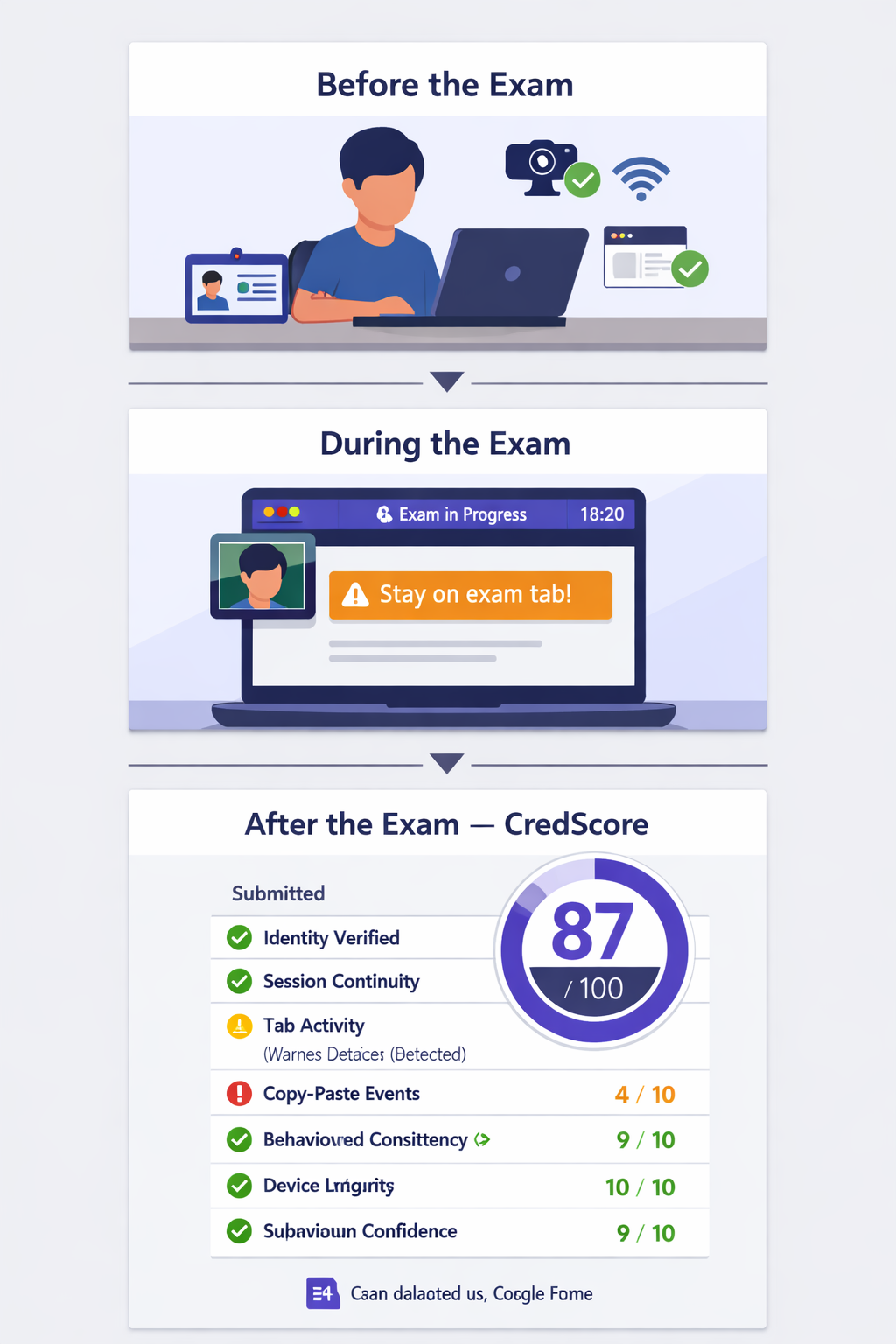
When you submit your proctored exam on MonitorExam, a CredScore report is generated automatically. This is a 7-dimension integrity report that goes to your institution:
- Identity verification result
- Session continuity
- Tab activity
- Copy-paste events
- Behavioural consistency
- Device integrity
- Submission confidence
Your CredScore is not your exam grade — it is an integrity record. Your exam grade comes separately from your institution's marking.
If your CredScore shows flagged events — such as a tab switch — this does not automatically mean a violation. Your institution reviews flagged sessions and makes the final determination. An accidental tab switch or a momentary face absence due to poor lighting is not the same as deliberate cheating.
Tips for the Day of the Exam
1 hour before:
- Complete the environment setup
- Test camera and internet
- Close all other applications
- Read the exam rules one more time
15 minutes before:
- Open the proctored link to do the system check
- Ensure identity verification documents are ready
- Use the bathroom — you cannot leave during the exam
During the exam:
- Stay in the exam tab — do not switch to other tabs even briefly
- Do not use copy-paste even for legitimate purposes
- If something goes wrong, take a screenshot immediately
- Submit before the time limit — do not wait until the last second
After submitting:
- Do not close the browser immediately — wait for the confirmation screen
- Note your submission timestamp
- Contact your exam coordinator if you experienced any technical issues during the exam
Frequently Asked Questions
What is a proctored exam? A proctored exam is an online assessment monitored by AI software to ensure it is completed independently. Proctoring typically includes browser lockdown, identity verification, and a session integrity report delivered after submission.
What do I need for a proctored exam? A laptop or desktop computer, a stable internet connection (minimum 2 Mbps), a compatible browser (Chrome, Firefox, Safari, or Edge), and a quiet environment. Camera and government ID may be required depending on your institution's configuration.
Can I use my phone for a proctored exam? It depends on the platform. MonitorExam works on mobile browsers in camera-optional mode. For camera-required exams, a laptop or desktop with a webcam is recommended.
What happens if my internet disconnects during a proctored exam? Reconnect immediately and reopen the same proctored link. Most platforms save your progress. Inform your exam coordinator — the disconnection appears in the session log and its technical cause can be verified.
Can the proctor see my screen during the exam? In MonitorExam's standard mode, the proctoring system monitors tab activity and flagged events — it does not record your full screen. Screen sharing is detected only if you initiate it. Your exam coordinator can view the session log but not a continuous screen recording unless your institution has enabled full session recording.
What should I do if the exam link doesn't work? Check the exam start and end times first. If the timing is correct, contact your exam coordinator immediately with a screenshot. Do not attempt to open the original Google Forms or LMS link directly.
How is the CredScore different from my exam grade? CredScore is an integrity report — it covers session behaviour, not academic performance. Your exam grade comes from your institution's marking of your answers. A CredScore flag does not automatically constitute a violation.
Can I go to the bathroom during a proctored exam? This depends on your institution's rules. Most proctored exams do not allow leaving the exam environment mid-session. Plan accordingly and use the bathroom before the exam begins.
What if the face detection keeps failing? Improve lighting so your face is clearly visible, centre yourself in the camera frame, remove hats or accessories, and ensure no other applications are using the camera. Most systems allow multiple attempts.
For teachers and institutions
Set up your first proctored exam in 5 minutes.
Paste any Google Forms link. Share the proctored URL with students. CredScore delivered the moment they submit. Free for 15 exams/month.
Already a student looking for exam help? Read the student guide above ↑ or contact your exam coordinator directly.
Related reading: